
If you run more than a handful of campaigns on Adexium, the My Campaigns page has been a long flat table. Comparing “the Tier 1 casino push” against “the Asia VPN TMA tests” meant scrolling, sorting and doing sums in your head. This release fixes that with three things that work together: campaign groups, bulk actions and status counters.
Everything below is live in the advertiser dashboard. There is nothing to enable: the page looks exactly as before until you create your first group.
Campaign groups
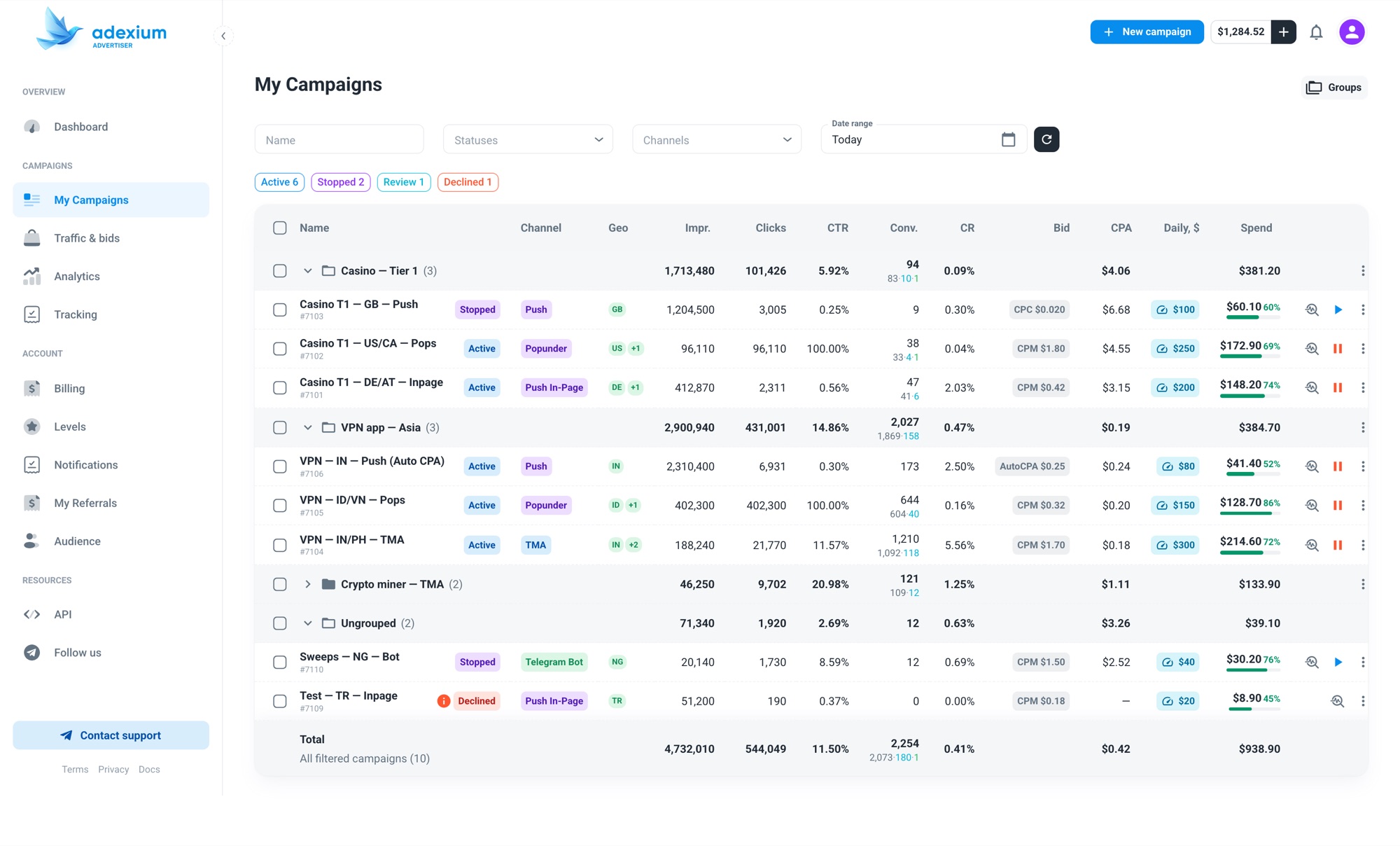
A group is a folder on the My Campaigns page. You create it, drop campaigns in, and the table renders each folder as a collapsible section with its own totals row.
What you get from a folder header:
- Totals per group: impressions, clicks, CTR, conversions split by level (L1 / L2 / L3), CR, CPA and spend. They are calculated by the same code as the Total row at the bottom, over the same date range, so a folder total and the page total never disagree.
- Collapse and expand. Collapsed folders keep their totals visible, which turns the page into a portfolio view: one line per offer or per geo, with the numbers that matter.
- Ungrouped collects everything you have not filed yet, at the bottom.
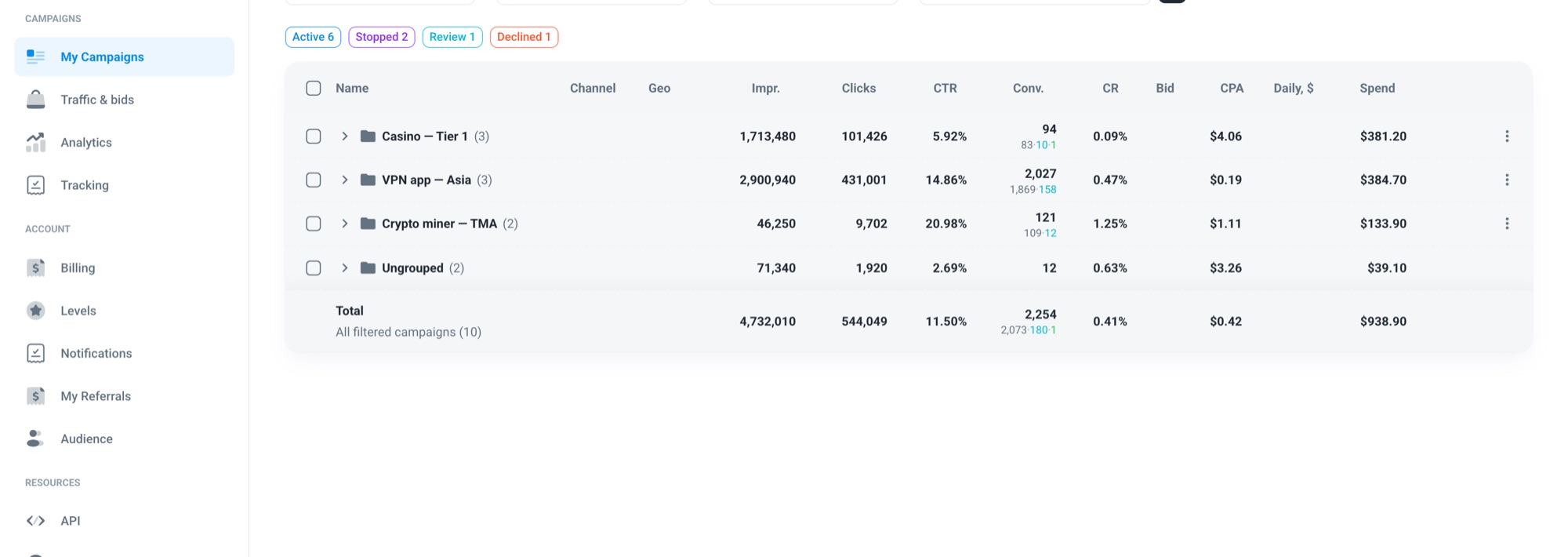
Groups are pure organization. Moving a campaign between folders does not touch the campaign itself: no re-moderation, no change to bids, targeting or status. A campaign belongs to at most one group. Deleting a group does not delete campaigns, they simply return to Ungrouped.
Moving campaigns
Open the ⋮ menu on any row and pick Move to group. The dialog lists your folders, marks the current one, and lets you create a new folder inline without leaving the page.
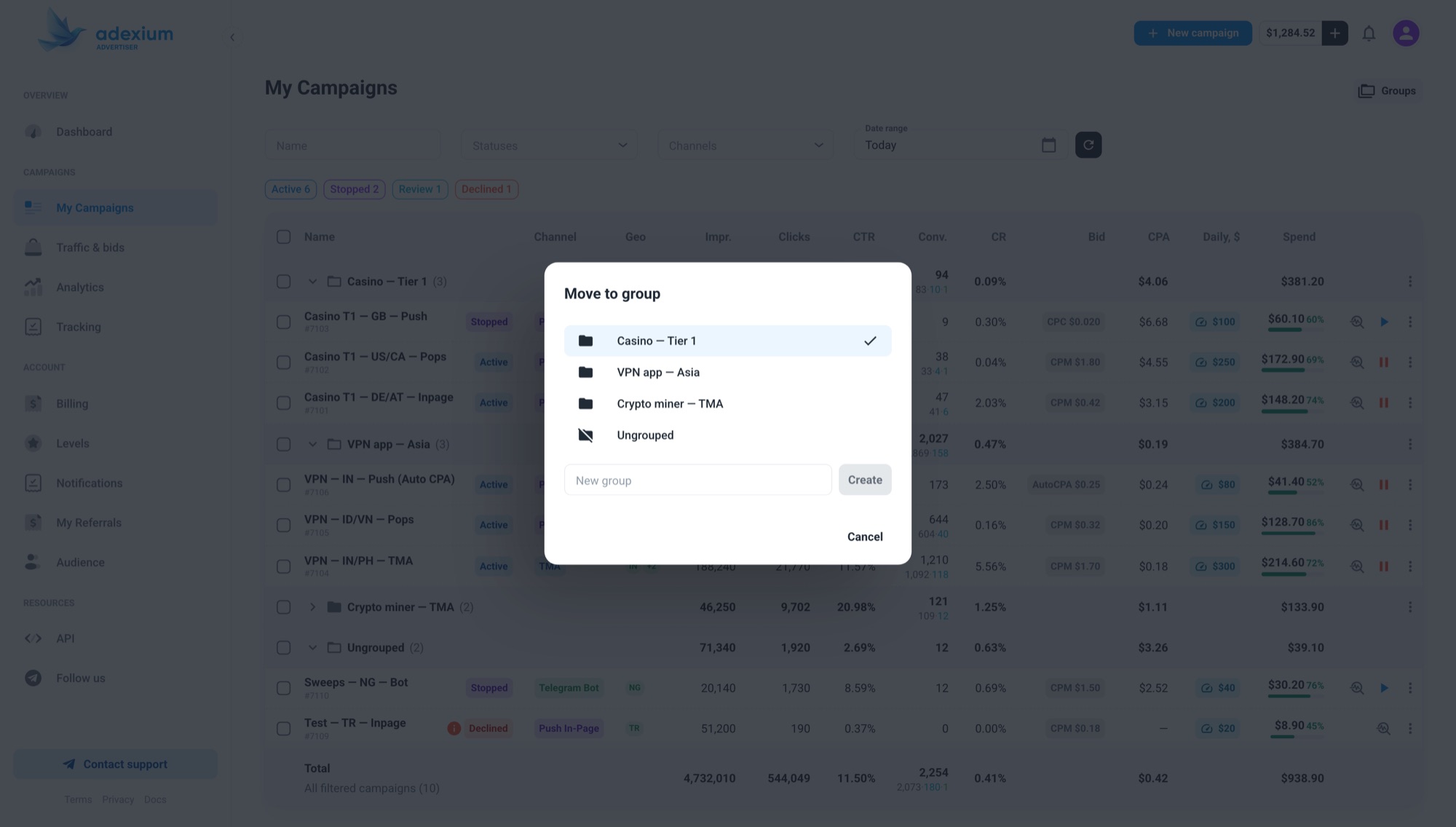
Managing the folders themselves lives behind the Groups button at the top of the page: create, rename, delete, with a campaign count next to each.
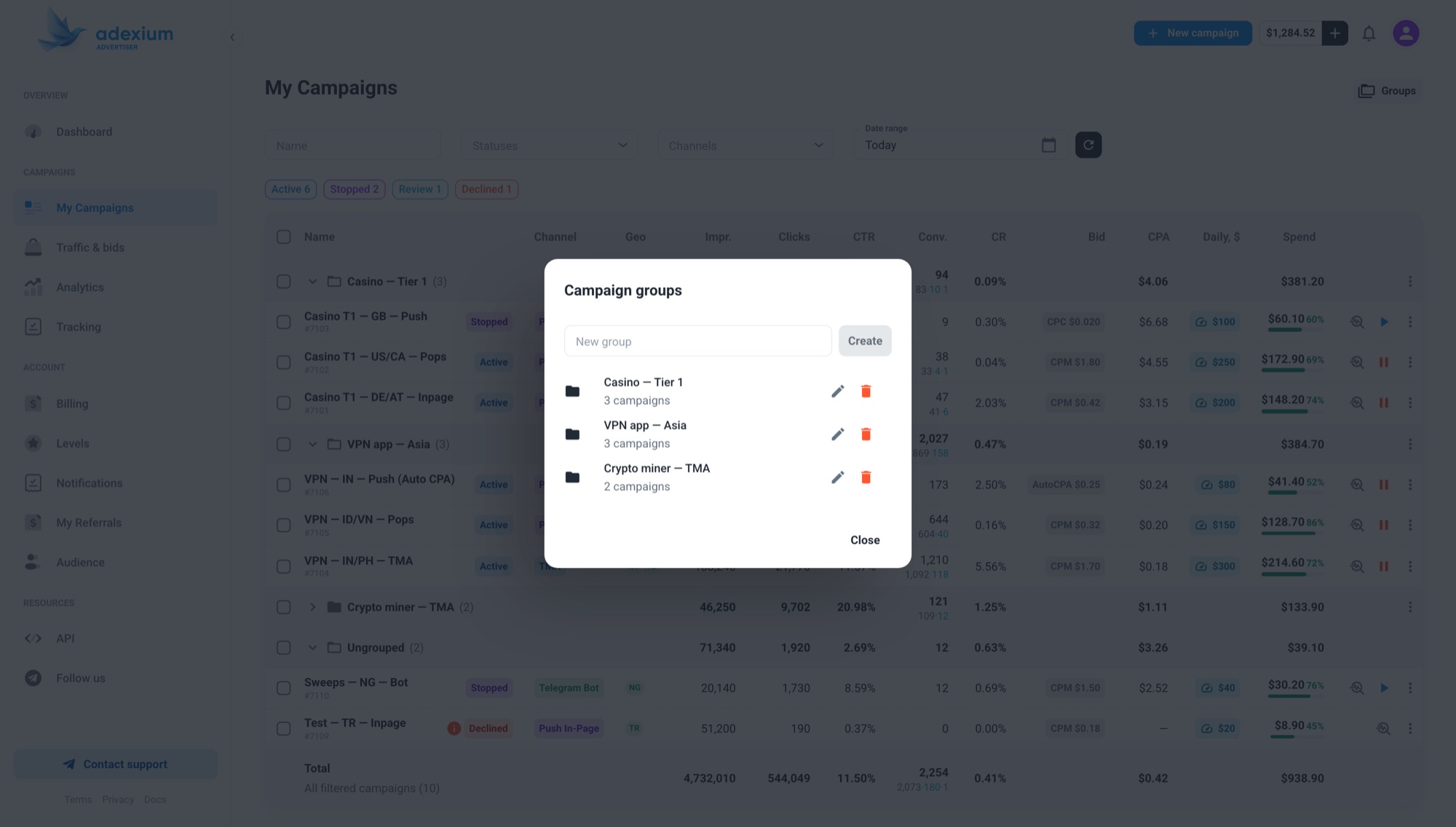
Groups and filters
Filters and sorting still work inside groups. Sort by spend and every folder sorts by spend internally. Filter by channel and folders that end up empty disappear until you clear the filter. The one thing that changes when groups are active is pagination: the list shows all campaigns at once, and collapsing is the way to keep it short. A page break in the middle of a folder would make the folder total lie.
Bulk actions
Every row now has a checkbox, and so does every folder header. Tick a header to select the whole folder; the header shows a partial state if only some campaigns inside are selected. The checkbox in the table head selects all filtered campaigns, not only the visible page.
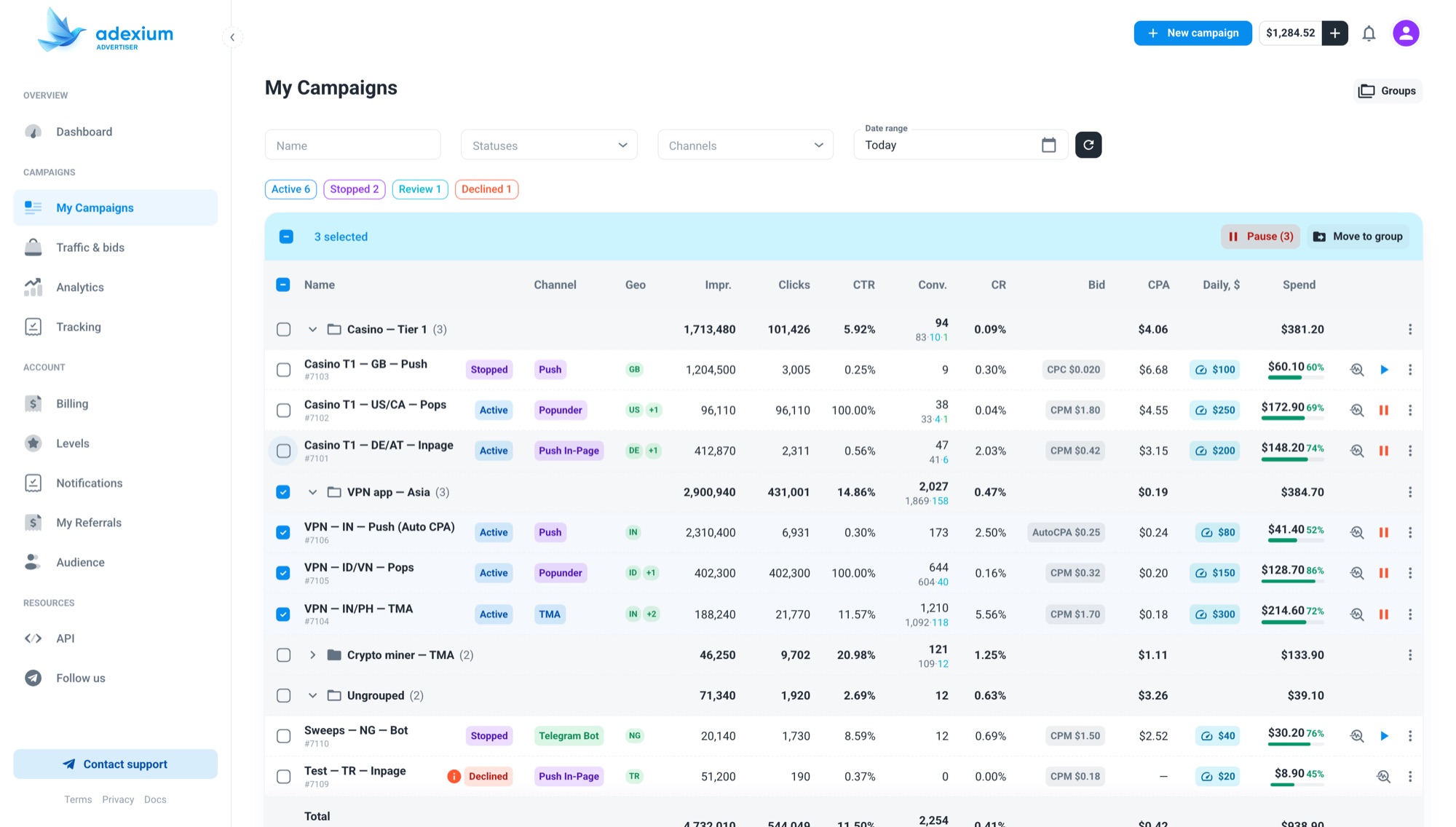
With a selection, a toolbar appears over the table:
- Start (N) and Pause (N). The counter shows how many of the selected campaigns the action applies to: Start counts stopped ones, Pause counts active ones. Campaigns in review or declined are skipped, and the result is reported as “N started, M failed” so nothing changes silently.
- Move to group moves the whole selection, using the same dialog as the single-row move.
Bulk actions run through the same per-campaign rules as the buttons on a row. Nothing a bulk action does could not be done by hand, it is just faster.
Status counters
Between the filters and the table there is now a row of chips: Active, Stopped, Review, Declined, each with a live count for the current filter. Click a chip to show only that status, click again to clear. The chips are the same status filter that already existed in the Statuses dropdown, so the URL of the page still carries your selection and you can share or bookmark it.
Two details worth knowing. First, the counts are calculated over the full filtered list, so activating “Declined” does not zero out the other counters: you still see how many are active while you review what got declined. Second, chips with a count of zero stay visible but disabled, so the row reads the same way every time.
Why folders instead of tags or labels
We considered tags. Folders won because the question advertisers ask is not “which campaigns have label X” but “how is my casino Tier 1 test doing compared to my Asia VPN test”. That needs totals per bucket and a bucket per campaign, which is what a folder is. If a campaign needs to be in two comparisons at once, cloning it is the honest answer: two campaigns produce two sets of numbers.
What to group by
A few patterns we see work well:
- By offer when you run several verticals from one account: totals per offer become your daily check, and a paused folder is a paused offer.
- By geo tier when the same offer runs across Tier 1 and Tier 3 with different bids and budgets.
- By funnel stage, for example a discovery folder with broad campaigns and a whitelist folder with the campaigns that scale, the setup from the Philippines popunder case study. Folder CPA next to folder CPA tells you when to move budget.
- By client, if you buy for several advertisers from one Adexium account.
Log in to advertiser.adexium.io, open My Campaigns, and press Groups.